The JavaScript Document Object Model (DOM)
Introduction
In this lecture, we explore how JavaScript powers interactivity on the web through the Document Object Model (DOM). While JavaScript can run in many environments today (Node.js, servers, tooling), it was originally designed to run inside the browser to manipulate web pages in real time.
Understanding the DOM is a critical milestone in front-end development. It is the bridge between static HTML/CSS and dynamic, interactive applications.
JavaScript in the Browser
You’ve already used JavaScript via Node.js to run scripts in the terminal. However, browsers provide a different execution environment with additional capabilities:
- Access to the HTML document
- Access to CSS styles
- Access to user events (clicks, typing, mouse movement)
- Access to browser APIs
When JavaScript runs in the browser, it can:
- Read the page structure
- Modify content and styles
- React to user interactions
This browser-specific interface is made possible through the DOM.
What Is the DOM?
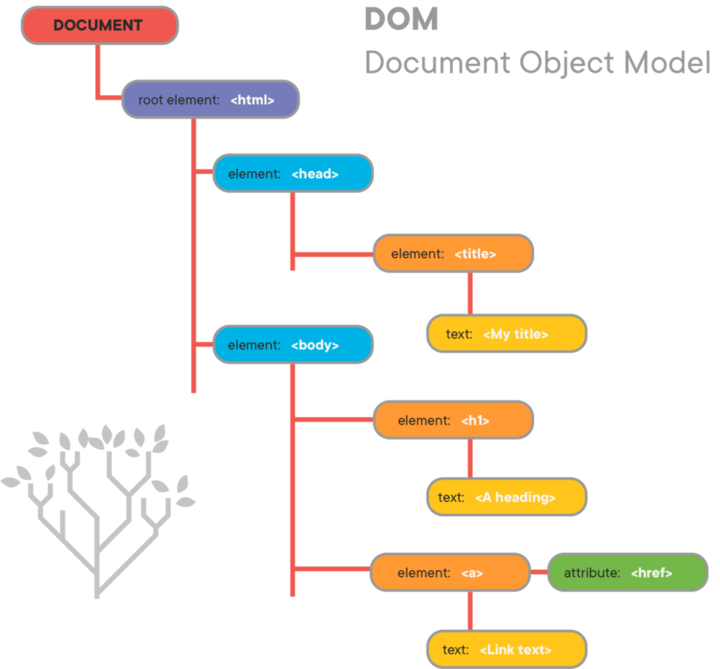
The Document Object Model (DOM) is a tree-like representation of an HTML document created by the browser.
When the browser receives HTML and CSS:
- It parses the HTML
- It builds a tree of nodes
- Each HTML element becomes a JavaScript object
Each node in the DOM represents:
- An element
- An attribute
- A piece of text
JavaScript interacts with this tree to update what users see—without reloading the page.
Basic DOM Interaction Example
<!DOCTYPE html>
<html>
  <head>
    <title>My HTML Page</title>
    <script>
      const showGreeting = () => {
        let nameInput = document.getElementById("input-name")
        let greetingOutput = document.getElementById("output")
        if (nameInput && greetingOutput) {
          greetingOutput.innerHTML = "Hello " + nameInput.value + "!"
        }
      }
    </script>
  </head>
  <body>
    <input id="input-name" placeholder="name"/>
    <button onclick="showGreeting();">Submit</button>
    <div>
      <p id="output"></p>
    </div>
  </body>
</html>
This demonstrates:
- Accessing DOM nodes
- Reading user input
- Updating the UI dynamically
External JavaScript Files
Inline JavaScript works for demos, but real applications separate concerns.
<script src="scripts.js" defer></script>
// scripts.js
const showGreeting = () => {
  let nameInput = document.getElementById("input-name");
  let greetingOutput = document.getElementById("output");
  if (nameInput && greetingOutput) {
    greetingOutput.innerHTML = "Hello " + nameInput.value + "!";
  }
};
Why defer?
- Ensures HTML is fully parsed before JavaScript runs
- Prevents errors when accessing DOM elements too early
- Preferred for most front-end scripts
Accessing Elements in the DOM
JavaScript retrieves DOM elements through the document object.
Common DOM Selection Methods
| Method | Returns | Use Case |
|---|---|---|
getElementById |
Single element | Unique IDs |
getElementsByClassName |
HTMLCollection | Multiple elements with same class |
getElementsByTagName |
HTMLCollection | All elements of a type |
querySelector |
Single element | CSS-style selection |
querySelectorAll |
NodeList | Multiple CSS-style matches |
Example HTML
<div id="parent-div">
  <div id="one" class="alpha apple">First</div>
  <div id="two" class="alpha avocado">Second</div>
  <div id="three" class="beta banana">Third</div>
</div>
Selection Examples
document.getElementById("one");
document.getElementsByClassName("alpha");
document.getElementsByTagName("div");
document.querySelector("#one");
document.querySelectorAll(".alpha");
Manipulating the DOM
Once you have a reference to a DOM node, you can:
- Change content
- Modify styles
- Add or remove elements
Creating and Inserting Elements
const insertNewElement = () => {
  let newDiv = document.createElement("div");
  newDiv.innerHTML = "This is a newly created div!";
  newDiv.className = "alpha added";

  let parentDiv = document.getElementById("parent-div");
  if (parentDiv) {
    parentDiv.appendChild(newDiv);
  }
};
Key concept: Creating an element does not make it visible until it is attached to the DOM tree.
Events and User Interaction
The browser constantly listens for user actions such as:
- Clicks
- Key presses
- Mouse movement
- Form submissions
Inline Event Handling
<button onclick="handleClick()">Click Me</button>
Dynamic Event Listeners (Preferred)
element.addEventListener("click", handler);
Example with Mouse Events
newDiv.addEventListener("mousemove", (evt) => {
  let xRatio = 1 - evt.x / document.documentElement.clientWidth;
  let value = Math.round(256 * xRatio);
  evt.target.style.backgroundColor = `rgb(256, ${value}, ${value})`;
});
The Event Object
Every event listener receives an event object containing:
- Target element (
evt.target) - Mouse position
- Keyboard input
- Event type
This object is automatically provided by the browser.
Controlling Event Behavior
event.preventDefault()
Stops the browser’s default behavior.
Common examples:
- Preventing form refresh
- Preventing link navigation
- Preventing page scroll
window.addEventListener("keydown", (evt) => {
  if (evt.code === "Space") {
    evt.preventDefault();
  }
});
event.stopPropagation()
Stops the event from bubbling up the DOM tree.
const sayHi = (evt) => {
  evt.stopPropagation();
  console.log("hi (inner)");
};
Key distinction:
| Method | Prevents |
|---|---|
preventDefault() |
Browser behavior |
stopPropagation() |
Other DOM listeners |
Working with HTML Forms
Forms collect user data and typically send it to a server.
HTML Form Example
<form onsubmit="handleFormSubmit(event)">
  <input name="name" placeholder="name" />
  <input name="favColor" placeholder="color" />
  <button type="submit">Submit</button>
</form>
<p id="output"></p>
JavaScript Handling
const handleFormSubmit = (evt) => {
  evt.preventDefault();

  const formData = new FormData(evt.target);
  const formProps = Object.fromEntries(formData);

  showGreeting(formProps.name);
};
Why preventDefault()?
- Prevents page refresh
- Enables client-side handling
- Required for SPA-style applications
DOM and Full Stack Context
The DOM is the front-end runtime model of your application.
- HTML defines structure
- CSS defines appearance
- JavaScript (DOM) defines behavior
Modern frameworks (React, Vue, Angular) abstract the DOM, but the underlying principles remain the same.
Understanding the DOM deeply:
- Improves debugging
- Clarifies framework behavior
- Strengthens mental models for UI state
Conclusion
The Document Object Model is the foundation of all front-end interactivity. By understanding how JavaScript accesses, modifies, and reacts to the DOM, you gain direct control over the user experience.
Everything from simple button clicks to complex single-page applications builds on these core ideas. Mastering the DOM is not optional—it is the gateway to modern front-end and full stack development.